Your logo looks crisp on your laptop. Then you upload it to a print shop or put it on a billboard — and suddenly it is a pixelated mess.
That is because PNG and JPG are raster formats. They store pixels. When you stretch them, you see blocks.
The fix is a vector file (SVG). Vector files store mathematical paths, not pixels. They scale to any size without losing quality.
The problem? Most guides tell you to use Adobe Illustrator — $23/month. Or hire a freelancer — $50–200. You do not need either.
What You Will Need
- Your logo file — PNG or JPG, preferably clean and high-contrast
- A browser — Chrome, Edge, Firefox, or Safari
- 30 seconds
Step 1: Go to the Converter
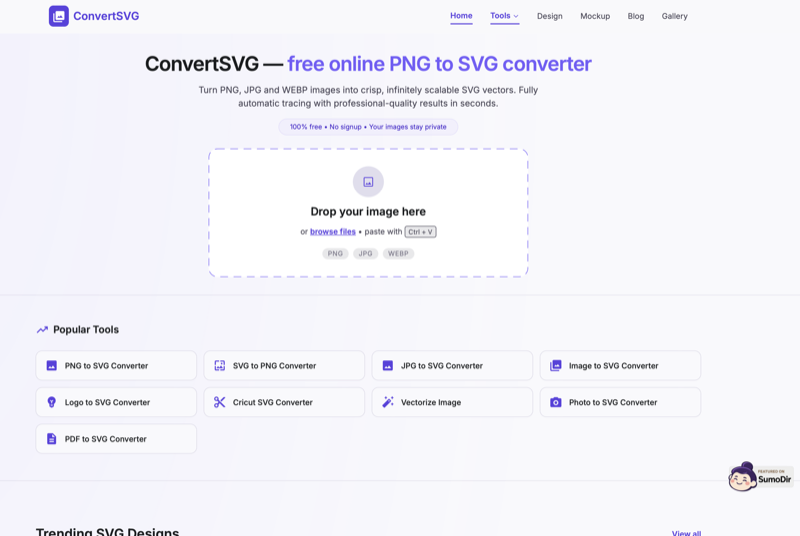
Open convertsvg.net/logo-to-svg in your browser. You will see a drag-and-drop upload area.
Step 2: Upload Your Logo
Drag your PNG or JPG logo onto the upload area, or click to browse. Images up to 2000px are supported.
Step 3: Choose Your Settings
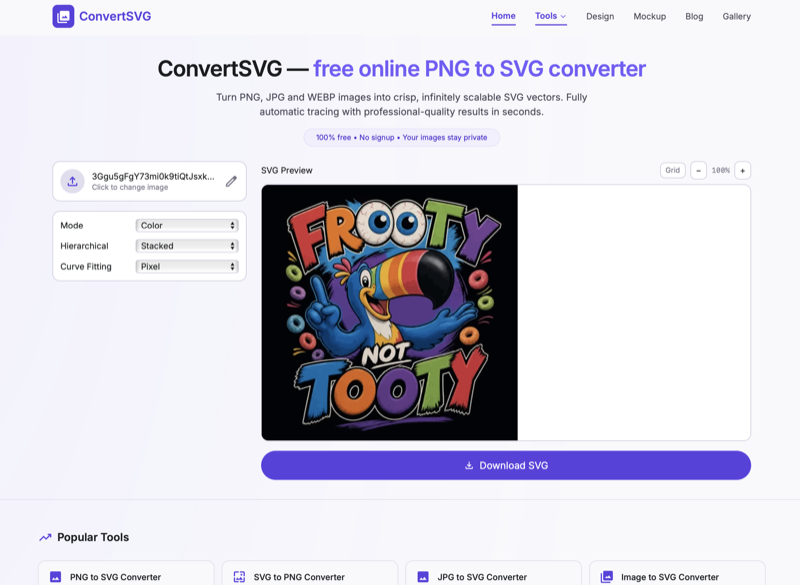
For most logos, these settings work well:
- Mode: Color (for multi-color logos) or Black & White (for simple designs)
- Hierarchy: Stacked (layers overlap naturally)
- Curve Fitting: Spline (smoothest curves)
The preview updates instantly as you adjust settings.
Step 4: Download Your SVG
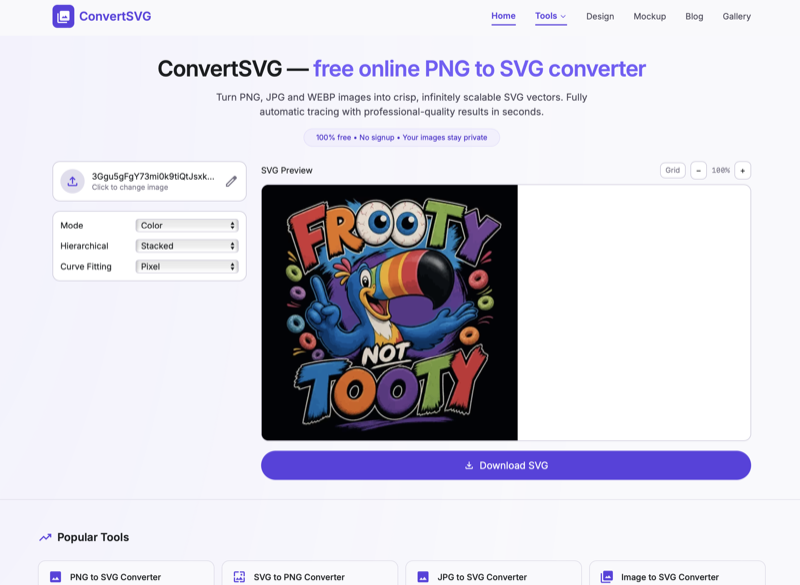
Click the download button. Your SVG file is ready to use. Open it in Figma, Inkscape, or directly in a browser — it stays sharp at any zoom level.
3 Tips for the Best Result
- Start with high contrast — A logo with clear edges and solid colors vectorizes much better than a faded or low-res image.
- Remove the background first — Use a PNG with transparent background. A white background adds extra shapes to your SVG.
- Match the color count — If your logo has 3 colors, set the converter to 3 colors. Fewer colors means a cleaner, smaller SVG.
What If the Result Isn't Perfect?
Auto-tracing has limits. If the SVG has stray specks or jagged edges, clean it up for free:
- Inkscape (free desktop app) — Open the SVG, select stray shapes and delete them, use the Node editor to smooth rough curves.
- Figma (free browser-based) — Import the SVG, ungroup, delete unwanted paths, flatten remaining shapes (Ctrl+E).
Why I Built ConvertSVG
A few years ago, I needed to vectorize a client's logo for a print project. I did not have Illustrator. Every free option was either complicated desktop software or paid services with watermarks. Every solution assumed you had design skills or a budget.
I built ConvertSVG because vectorizing a logo should not require either. It runs entirely in your browser using VTracer — a Rust-based engine compiled to WebAssembly. Your files never leave your device. No uploads, no accounts, no watermarks.
Thousands of people use it daily. It is free because design tools should be accessible to everyone.
Frequently Asked Questions
- Will the SVG preserve my logo's colors? Yes. VTracer preserves all color regions from your original logo. Each color becomes a separate editable path.
- Can I edit the SVG after conversion? Yes. Open it in Figma, Inkscape, or Illustrator. Each color region is a separate path layer.
- Is it really free? Yes. No signup, no watermarks, no daily limits.
- Does it work for Cricut? Yes. Use Black & White mode and Cutout hierarchy for the best cutting results.
- What about logos with gradients? Auto-tracing simplifies gradients into stepped color regions. Set a higher color count (8–16) to preserve more detail.
Vectorize your logo now
Go to convertsvg.net/logo-to-svg — free, instant, and private. Your files never leave your device.